
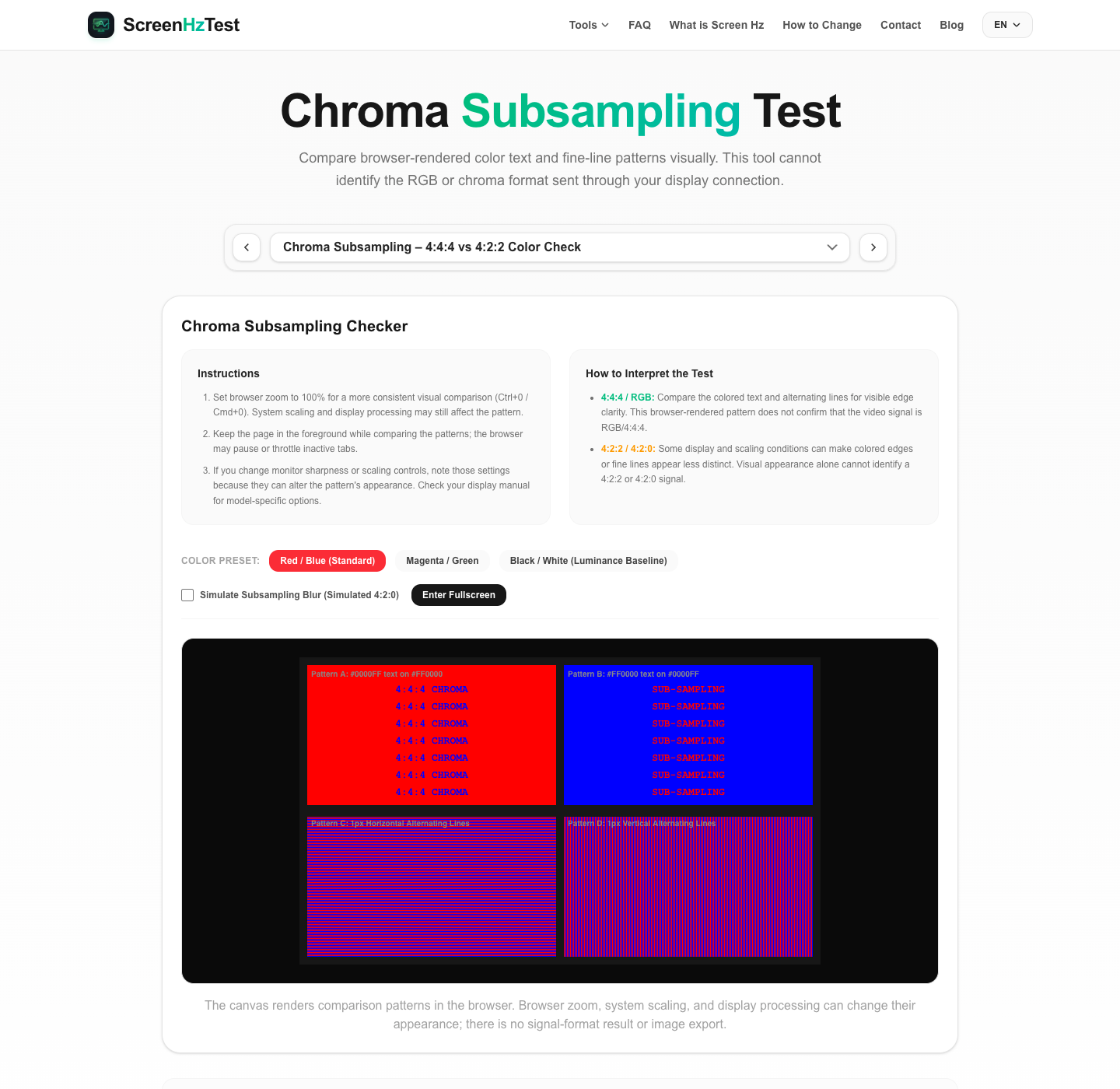
When connecting a PC, console, or streaming box to a monitor or TV, chroma subsampling can affect color detail around fine edges. This page renders color text and alternating fine-line patterns in the browser. Choose a color preset and compare the patterns; the optional blur control demonstrates a visual effect only. The tool does not inspect the signal format sent by your operating system, graphics card, cable, or display. On narrow screens the patterns are stacked vertically, and the page provides no image export.
What is Chroma Subsampling?
Chroma subsampling describes video formats that use fewer chroma samples than luma samples. It can reduce the data needed to represent color detail, while the effect on an image depends on its format and processing.
Common formats are described by a three-part ratio, such as 4:a:b:
- 4:4:4: The chroma planes have the same horizontal and vertical sample dimensions as luma. This describes sampling and does not mean the entire signal is uncompressed.
- 4:2:2: Each chroma plane has half the horizontal sample dimension of luma and the same vertical dimension.
- 4:2:0: Each chroma plane has half the horizontal and vertical sample dimensions of luma. Sample alignment and reconstruction depend on the format and processing.
How Chroma Sampling Can Affect Fine Edges
Chroma subsampling is commonly used in video formats. On some display paths, reduced color detail can make high-contrast colored edges or fine text appear less distinct; the visible effect depends on the source, scaling, and display processing. This browser pattern cannot establish which signal format is active.
Fine text and high-contrast colored edges may look different after chroma reconstruction and display processing:
- Fine colored text: Some saturated text edges may appear less distinct; the result depends on the source and display path.
- Visual comfort: This pattern cannot assess eye strain or determine its cause.
- Fine-line appearance: Thin elements may look different depending on scaling and display processing; this page does not diagnose flicker or a panel fault.
How to Solve Chroma Subsampling Issues
If fine text or lines look less distinct, review these general settings. The browser pattern cannot determine whether chroma subsampling is the cause:
- Review display input settings: Some TVs provide input labels or enhanced-format settings, but names and behavior vary by model. Check the TV manual before changing options; this visual test cannot confirm the active signal format.
- Review graphics output settings: If you are troubleshooting a real video connection, check your GPU and display documentation for available color-format options. This page cannot read or confirm the selected output format.
- Check the Display Connection: Supported resolution, refresh rate, bit depth, and chroma format depend on the specific GPU, display input, cable, and adapter. Check the specifications for the exact combination; this visual test cannot diagnose a cable or automatic format change.
Frequently Asked Questions about Chroma Subsampling
Does HDMI 2.0 support 4K 60Hz at 4:4:4?
HDMI 2.0 bandwidth can support some 4K 60Hz 8-bit RGB/YCbCr 4:4:4 timings, but the available combination depends on timing, bit depth, GPU output, display input, and other settings. Higher bit depth or refresh rate may require a different format or supported link configuration. HDMI 2.1 does not guarantee a particular mode unless both connected devices and the cable support it.
Why does browser scaling affect the chroma test?
Browser zoom, device pixel ratio, operating-system scaling, and display processing can affect fine patterns. Returning browser zoom to 100% can make comparisons more consistent, but this does not ensure a one-to-one mapping to physical display pixels.
Is RGB color the same as 4:4:4?
RGB and YCbCr 4:4:4 use different component representations. YCbCr 4:4:4 has the same chroma sample dimensions as luma; RGB does not use YCbCr chroma subsampling. The visible result still depends on bit depth, processing, and the display path.