
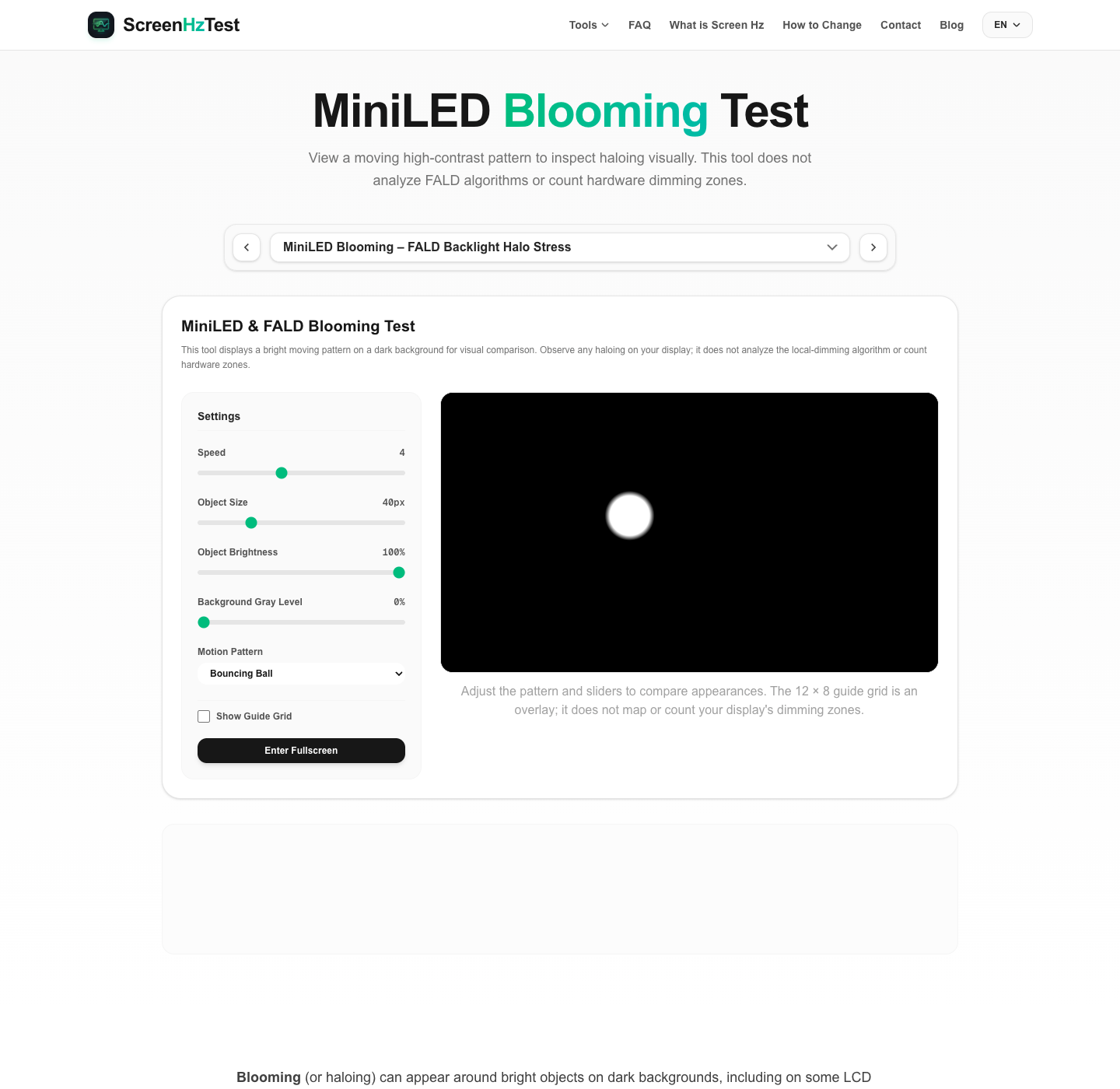
Blooming (or haloing) can appear around bright objects on dark backgrounds, including on some LCD displays with local dimming. This page renders a bright moving pattern so you can inspect your display visually. Choose a motion pattern—bouncing, circular, or mouse-follow—and adjust speed (0–10), object size (5–150 px), brightness (10–100%), and background gray level (0–50%). The optional 12 × 8 grid is a visual overlay, not a map of your panel's dimming zones. The page produces no measurement or file export.
What is Mini-LED Blooming & FALD Haloing?
Some LCD displays use full-array local dimming, grouping backlight LEDs into zones that can be controlled separately. The number and layout of zones, control behavior, and resulting contrast vary by model. In a dark scene, a bright object may cause nearby backlight areas to illuminate; those areas are larger than individual pixels on many displays.
Blooming is a halo-like appearance around bright objects on dark backgrounds. Zone size and layout can contribute, alongside panel optics, image processing, brightness, and viewing conditions. A visible halo is an observation, not a measurement of zone count or proof of a particular hardware defect.
How to Use This Blooming Test Effectively
For a consistent visual comparison, use the controls and viewing conditions below. This pattern does not measure local-dimming performance:
- Darken Your Environment: Reduce ambient light if you want to compare the appearance of halos against a dark background.
- Enter Fullscreen Mode: Use the tool's fullscreen button to enlarge the rendered pattern. Browser chrome and other screen content can change the appearance of the test scene.
- Compare Motion Patterns: Select "Bouncing Ball", "Circular Orbit", or "Follow Mouse" and observe the display. Mouse-follow requires pointer movement; on touch screens use bouncing or circular motion. Visible trails are subjective and do not identify their cause.
- Use the Guide Grid: Toggle "Show Guide Grid" to add the fixed 12 × 8 overlay. It does not align to, or reveal the number of, physical backlight zones.
How to Minimize Blooming on Your Display
The appearance can vary with display settings and viewing conditions. These general checks may change what you see, but the effect depends on the model:
- Review Local Dimming Settings: If your display has local-dimming options, compare the available settings using the manufacturer's guidance. Names and trade-offs vary by model.
- Compare Brightness Levels: Try a lower brightness setting and compare the same pattern in the same room. This changes the viewing condition; it does not measure or repair the display.
- Keep Room Lighting Consistent: Ambient light can change how bright-on-dark patterns appear. Compare settings under similar lighting; this does not alter the display's measured output.
Frequently Asked Questions about MiniLED Local Dimming
Is OLED completely immune to blooming?
OLED pixels emit their own light and do not use an LCD backlight zone array. This removes that specific backlight-zone blooming mechanism, but does not guarantee that every bright-on-dark scene will appear free of all halos or optical artifacts.
Why does blooming look worse when viewed at an angle?
Viewing angle can affect perceived contrast or uniformity on some LCD displays, but behavior varies by panel and model. Compare from the same position and consult the display documentation; this visual test cannot isolate the cause of a halo.
How many zones does a good MiniLED monitor need?
There is no single zone count that guarantees a particular image quality. Perceived haloing also depends on zone layout, LCD panel behavior, dimming algorithm, brightness, content, and viewing conditions; this tool cannot count zones.