
What Is an FPS Test?
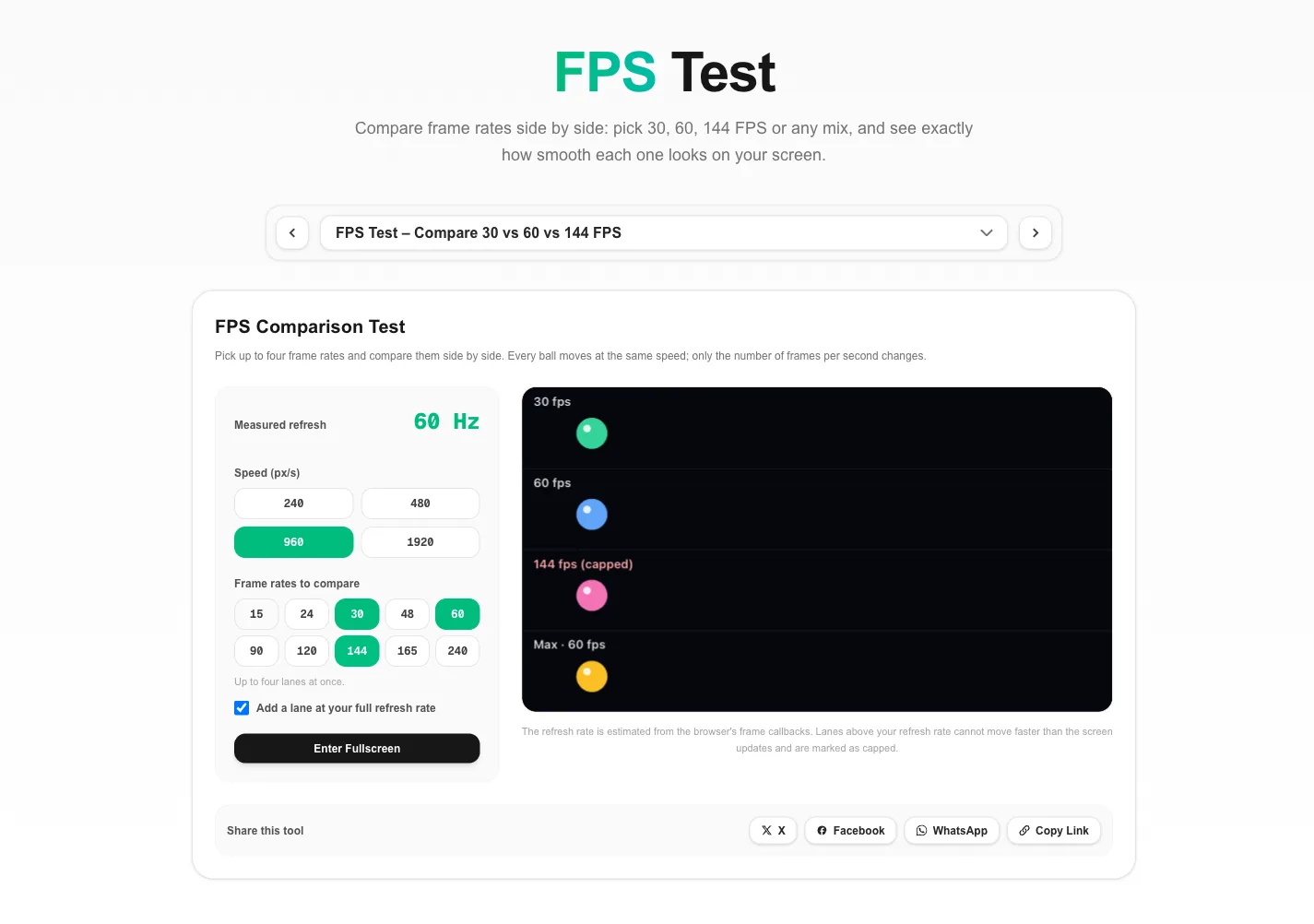
FPS stands for frames per second: how many separate images are shown each second to create motion. This FPS test lets you compare frame rates directly. Each lane moves a ball across the screen at the same speed, but each lane only updates at its own frame rate, so a 30 FPS ball jumps in larger steps than a 60 FPS or 144 FPS ball.
Unlike watching a video about frame rates, this FPS test runs on your own monitor at its real refresh rate. That matters, because a video recorded at 60 FPS cannot show you what 144 FPS looks like. Here, the difference between frame rates is rendered live on your panel.
How to Use the FPS Test
- Choose up to four frame rates from 15 to 240 FPS. The default compares 30 and 60 FPS with a lane at your full refresh rate.
- Pick a speed. Faster motion makes the gaps between frames wider and the differences easier to see.
- Follow each ball with your eyes rather than staring at one spot. Eye tracking reveals both stutter and motion blur.
- Go fullscreen for a cleaner comparison and fewer distractions.
- Check the measured refresh rate. Lanes above it are marked as capped, because your screen cannot show them.
30 vs 60 vs 144 FPS: What You Should See
| Frame rate | Time per frame | Step at 960 px/s | Typical look |
|---|---|---|---|
| 24 FPS | 41.7 ms | 40 px | Film-like, visible judder on pans |
| 30 FPS | 33.3 ms | 32 px | Console baseline, clearly stepped |
| 60 FPS | 16.7 ms | 16 px | Smooth for most games |
| 144 FPS | 6.9 ms | about 7 px | Very fluid, sharper in motion |
| 240 FPS | 4.2 ms | 4 px | Near-continuous for fast shooters |
The "step" column is how far the ball jumps between frames in this FPS test at 960 px/s. Halving the step is why going from 30 to 60 FPS feels like such a big upgrade, and why 144 FPS looks so much clearer when the camera moves quickly in a game.
FPS Test Basics: FPS vs Refresh Rate (Hz)
Frame rate is how many images your game or video produces. Refresh rate, measured in Hz, is how many times per second your monitor can show a new image. You only see as many frames as the lower of the two allows. A 60 Hz monitor caps visible motion at 60 FPS; a 144 Hz monitor can show up to 144.
That is why this FPS test measures your refresh rate first. If it reads 60 Hz on a 144 Hz monitor, the extra lanes will look identical until you fix the display setting. You can confirm the number with the screen Hz test, and see the effect on motion blur in the UFO test.
Stutter and Judder in the FPS Test
Some frame rates fit a refresh rate neatly and others do not. On a 60 Hz screen, 30 FPS holds each frame for exactly two refreshes, so motion is stepped but even. 24 FPS has to alternate between two and three refreshes per frame, so motion looks uneven. This is the same judder you notice when films play on a 60 Hz TV.
Run the FPS test on a 120 Hz or 240 Hz display and you will see that 24, 30 and 60 FPS all divide evenly, which is one reason high refresh screens handle mixed video and gaming content so well. Variable refresh rate technologies such as G-SYNC and FreeSync solve the same problem in games by changing the refresh rate to match the frame rate.
After the FPS Test: Choosing the Right FPS for Games and Video
- Movies and TV: usually 24, 25 or 30 FPS; try those lanes in the FPS test. A higher monitor refresh rate does not make them smoother, but an even multiple avoids judder.
- Story and strategy games: 60 FPS is comfortable; 30 FPS is playable if it is stable.
- Competitive shooters: 144 FPS or more on a matching monitor gives clearer motion and lower latency.
- Phones: many phones run at 90 or 120 Hz. Use this FPS test in landscape to compare 60 and 120 FPS on your phone screen.
FPS Test FAQ
What does this FPS test do?
The FPS test animates several balls at the same speed but different frame rates, such as 30, 60 and 144 frames per second. Comparing the lanes shows how much smoother motion becomes as the frame rate rises.
Can I see 144 FPS on a 60 Hz monitor?
No. A 60 Hz monitor shows at most 60 new images per second, so any lane above your refresh rate looks the same as the 60 FPS lane. The FPS test marks those lanes as capped. Games can still run above 60 FPS on a 60 Hz screen, which can lower input delay, but you will not see the extra frames.
Why does 24 or 48 FPS look uneven on my screen?
When a frame rate does not divide evenly into the refresh rate, some frames stay on screen longer than others. That uneven cadence is called judder. 30 FPS on a 60 Hz screen is even, while 24 FPS on 60 Hz alternates between two and three refreshes per frame.
Is this FPS test the same as an FPS counter?
No. An FPS counter measures how many frames a game or app renders. This FPS test simulates chosen frame rates so you can compare them visually. To see the browser's live refresh rate, use the screen Hz test.
What is a good FPS for gaming?
30 FPS is playable for slow games, 60 FPS is the common baseline for smooth play, and 120 to 240 FPS matters most in fast competitive shooters, provided the monitor refresh rate is high enough to show it.
Does the FPS test use my GPU?
Only lightly. Each lane of the FPS test is a simple drawing on one canvas, so almost any device can run the FPS test at its full refresh rate.