
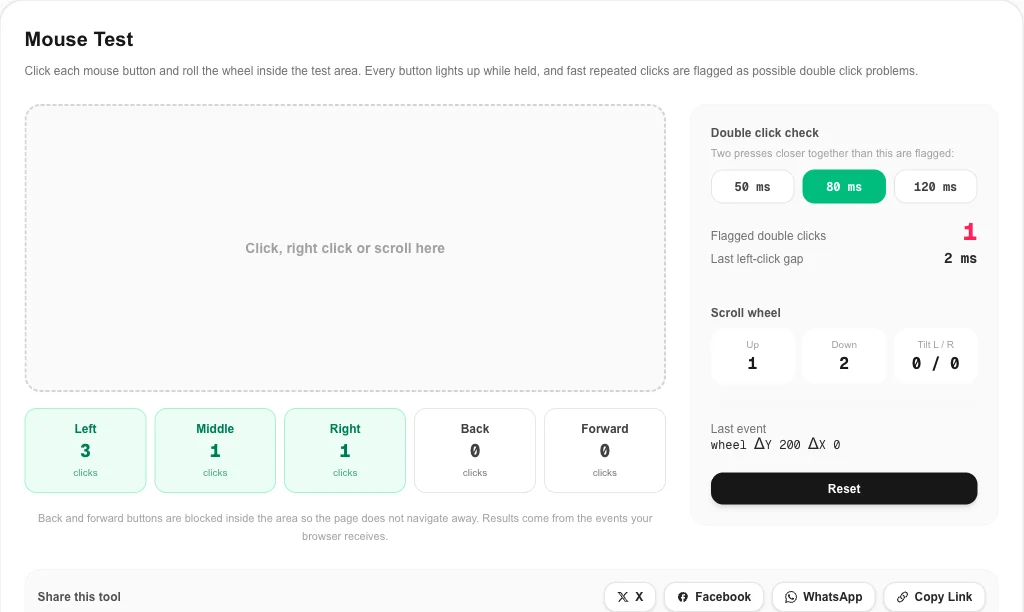
What This Mouse Test Checks
A mouse test answers a simple question: does every part of your mouse do what it should? This online mouse tester listens to the same events your games and apps receive, so if a button fails here, it fails everywhere.
- All five buttons: left, right, middle (wheel press), back and forward. Each lights up while held and counts every press.
- Scroll wheel test: separate counters for scrolling up and down, plus left and right tilt on wheels that support it.
- Double click check: any two presses closer together than your chosen limit are flagged, which is how a worn switch shows up.
- Last event readout: shows the raw button code or wheel delta so you can see exactly what the browser received.
Use the mouse test when you unbox a new mouse, before the return window closes, when you buy one second hand, or when a game suddenly ignores a button.
How to Run the Mouse Test
- Click once with each button inside the dashed area. Every counter should rise by exactly one.
- Hold each button for a second. The box should stay lit the whole time. Flicker while holding means the switch is losing contact.
- Run a mouse click test for the left button: click about 50 times at a normal pace and watch the flagged counter.
- Roll the wheel slowly, one notch at a time, in both directions. One notch should add one step to the matching counter.
- Press Reset and repeat the mouse test after changing software settings or cleaning the mouse.
The back and forward buttons are blocked inside the test area, so pressing them will not send the page back. Outside the area they work as usual.
Mouse Click Test: Finding Double Click Problems
The most common mouse fault is a left button that sometimes registers two clicks instead of one. Inside every mouse button is a small switch with a metal contact. As the contact wears or oxidizes, it can bounce and close twice within a few milliseconds. Mouse firmware hides most of this with a debounce delay, but a worn switch eventually bounces for longer than that delay.
Choosing the limit
Fast human clicking rarely goes below about 80 ms between presses. The default 80 ms limit catches typical chatter without flagging deliberate fast clicks. Use 50 ms if you click very fast, or 120 ms for a stricter mouse click test.
What a result means
| Result after 50 normal clicks | Likely meaning |
|---|---|
| 0 flagged | Switch is healthy |
| 1 to 2 flagged | Early wear; repeat the test and watch for more |
| 3 or more flagged | Switch chatter; raise debounce time, clean or replace the switch |
Many gaming mice let you raise the debounce time in their software; rerun the mouse test afterwards to see if the flags stop. That usually hides chatter for a while, but a new switch is the permanent fix. For background on why switches bounce, see the contact bounce section on Wikipedia.
Scroll Wheel Test
A failing scroll wheel usually jumps in the wrong direction or skips steps. The scroll wheel test counts each wheel event separately for up and down. Roll slowly in one direction: if the opposite counter also rises, the wheel encoder is dirty or worn. A short burst of compressed air into the wheel gap often fixes it.
In the mouse test, free-spinning or smooth-scrolling wheels and touchpads send many small events per notch, so the counters climb faster. That is normal. What matters in the scroll wheel test is that the direction is always correct.
Fixes When a Button Fails the Mouse Test
- Nothing registers in the mouse test: try another USB port, replace the battery or recharge a wireless mouse, and move the receiver closer with an extension cable.
- Side buttons do something else: reset button mapping in the vendor software, then run the mouse tester again.
- Right click opens a menu instead of counting: make sure you click inside the dashed test area.
- Random double clicks: if the mouse test keeps flagging presses, raise debounce time, clean the switch, or use the warranty. Many brands replace mice with switch chatter.
- Laggy or jumpy movement: that is a sensor or polling issue rather than a button problem. Check it with the mouse polling rate test.
Why Use This Online Mouse Tester
- Everything in one mouse test: five buttons, scroll wheel, tilt and double click detection on one screen.
- No download: runs in Chrome, Edge, Firefox and Safari on Windows, macOS and Linux.
- Private: the mouse test runs locally and sends nothing to a server.
- Pairs with display checks: test your screen with the screen Hz test or the UFO test while you are setting up a new desk.
Mouse Test FAQ
How do I test my mouse online?
Open the mouse test above and click each button inside the dashed area: left, right, middle (press the wheel), then the back and forward side buttons. Each counter should go up by exactly one per press. Then roll the wheel up and down and check that both scroll counters move.
How can I tell if my mouse double clicks by itself?
Click the left button slowly about 50 times. In this mouse test, a healthy switch never produces two presses closer than about 50 to 80 ms when you click once. If the flagged double click counter goes up while you are clicking at a normal pace, the switch is chattering and the mouse needs cleaning, a debounce setting change or a new switch.
Why do my side buttons not show up in the mouse test?
Some mice send back and forward as keyboard shortcuts or macros through their own software instead of as mouse buttons. Reset the button mapping in the vendor app (Logitech G HUB, Razer Synapse, SteelSeries GG and so on) and run the mouse test again.
Does this mouse tester check DPI or sensor accuracy?
No. This mouse tester checks buttons, the scroll wheel and double clicks. For sensor speed, use the mouse polling rate test, which shows how many position updates per second your mouse sends.
Can I run the mouse test on a laptop touchpad?
Yes. Taps and two-finger clicks register as left and right clicks, and two-finger scrolling moves the scroll counters. Touchpads usually report many small scroll steps instead of the clear notches of a mouse wheel.
Is the mouse click test safe?
Yes. The mouse click test runs entirely in your browser. Nothing is installed and no input is sent to a server.