
What This Keyboard Test Checks
A keyboard test tells you whether every key on your keyboard sends a signal when you press it, and only one signal per press. This online keyboard test listens to the same key events that your games, browser and text editor receive. If a key fails here, it will fail in those apps too.
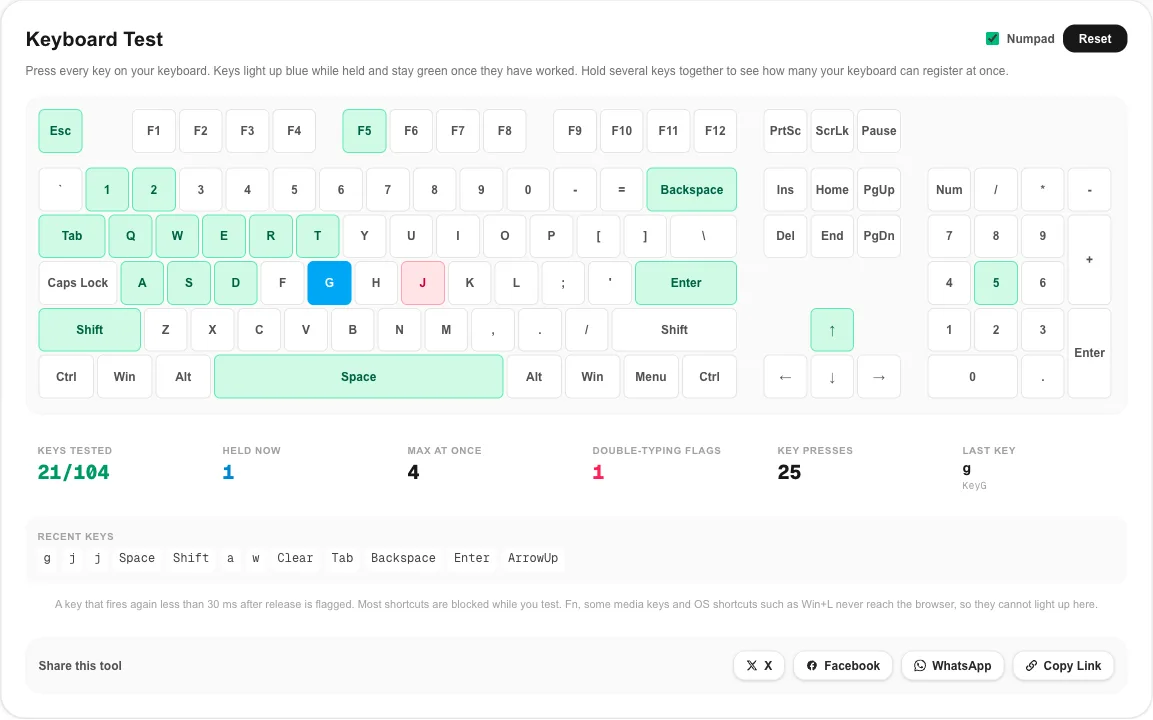
- Every key on a full layout: function row, number row, letters, modifiers, arrows, the navigation cluster and the numpad. Keys turn green in the keyboard test once they have worked.
- Held keys: a key stays blue while it is down, so a sticky key or one that drops out while held is easy to spot.
- Key rollover: the Max at once counter shows how many keys the keyboard reported at the same time.
- Double typing: a key that fires again within 30 ms of release turns red and adds to the chatter counter.
- Raw details: the last key panel shows the key value, the physical key code and how long you held it.
Run the keyboard test when you unbox a new keyboard, before a return window closes, when you buy one second hand, after a drink spill, or when a letter suddenly stops appearing in your documents.
How to Test Your Keyboard in One Minute
- Click anywhere on the page so the browser window has focus, then press any key to start the keyboard test. You do not need to click inside the layout.
- Press each key once, row by row, from Esc to the bottom row. Watch the keyboard test counter for keys tested climb.
- Look for white keys. Any key you pressed that is still white did not register in the keyboard test.
- Hold each modifier (Shift, Ctrl, Alt) for a second. It should stay blue in the keyboard test without flickering.
- Type a sentence at normal speed and check that the keyboard test chatter counter stays at zero.
- Press Reset and run the keyboard test again after cleaning the keyboard or changing a setting.
While the keyboard test is open, most browser shortcuts are blocked, so Space will not scroll the page and F5 will not reload it. Shortcuts with Ctrl or Cmd still work, so you can always close the tab.
Keyboard Chatter Test: Finding Keys That Type Twice
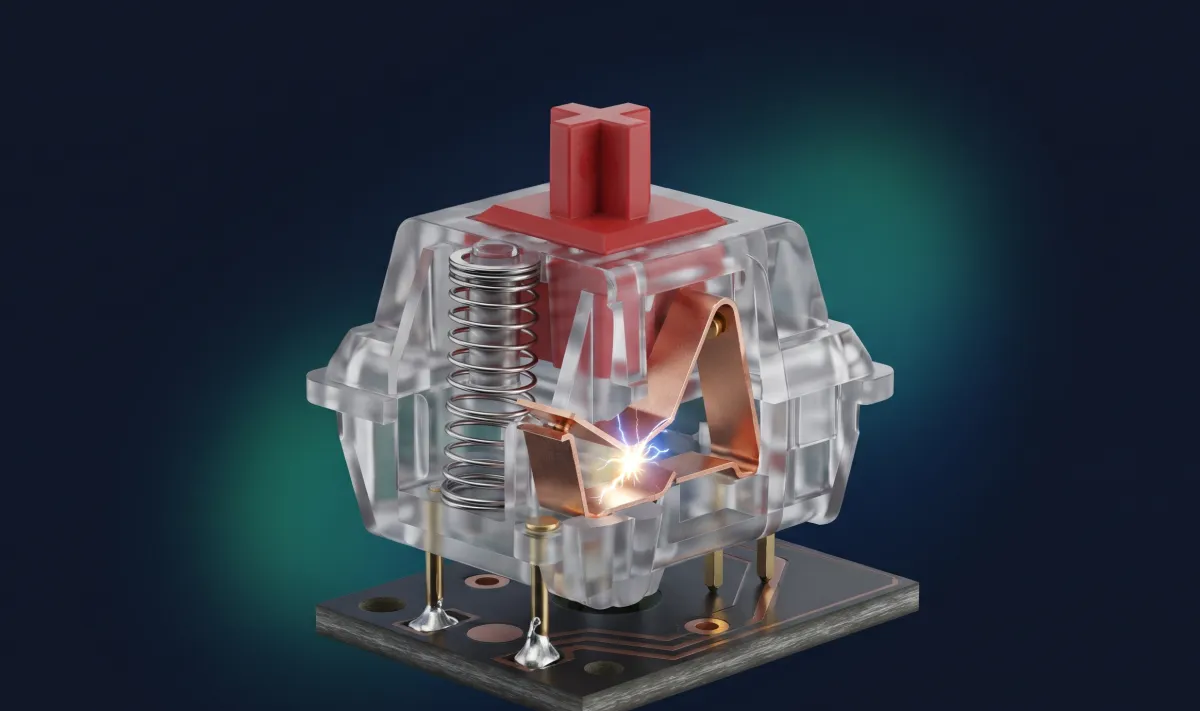
Double typing, often called key chatter, is the most common fault on mechanical keyboards. Each switch closes a pair of metal contacts. When they are worn, dirty or slightly bent, they can bounce and close twice in a few milliseconds. The keyboard firmware filters most bounce with a short debounce delay, but a worn switch eventually bounces for longer than that delay, and you get “hello” typed as “helllo”.
How this keyboard tester spots it
The keyboard test notes when each key is released. If the same key goes down again less than 30 ms later, it is flagged. Even very fast typists need more than 60 ms to lift and press the same key again, so a flag is a strong sign of a hardware fault rather than fast fingers.
| Keyboard test chatter flags after 100 presses of one key | What it usually means |
|---|---|
| 0 | The switch is healthy |
| 1 to 2 | Early wear or dust; clean and repeat the keyboard test |
| 3 or more | Real chatter; raise the debounce time, swap the switch or use the warranty |
Hot-swap boards let you pull the bad switch and drop in a new one in a minute. On soldered boards, check whether the maker’s software has a debounce setting before you reach for a soldering iron, and rerun the keyboard test after any change. For the electrical background, see the contact bounce section on Wikipedia.
Key Rollover and Ghosting Test
Key rollover is how many keys a keyboard can report at the same time, and the keyboard test above measures it directly. Ghosting is what happens when it cannot: a key you are holding simply does not appear in the keyboard test or in your game, or a key you never touched shows up. Both come from the way keys are wired. Most keyboards connect switches in a grid of rows and columns, and cheaper boards save diodes, so some three-key combinations confuse the controller.
How to run a rollover check in the keyboard test
- Hold the keys you use together in games, for example W, A, Shift and Space.
- Add more keys one at a time and watch which ones turn blue in the keyboard test.
- The Max at once number is your result for that combination. Try a few different groups, because the limit can change across the grid.
| Keyboard type | Typical keyboard test result (Max at once) |
|---|---|
| Basic office or membrane keyboard | 2 to 3 keys in some combinations |
| Laptop keyboard | Usually 3 to 6 |
| USB 6KRO gaming keyboard | 6 keys plus modifiers |
| N-key rollover (NKRO) | Every key you can hold |
Some NKRO keyboards switch to 6-key mode on certain ports or in BIOS-compatible mode, so if the result looks low, check the keyboard’s settings and run the keyboard test again. The rollover article on Wikipedia explains the wiring in more detail.
Keys No Browser Keyboard Test Can See
A web page only receives keys the operating system passes on. That means a few keys will stay white in any online keyboard test even on a perfect keyboard:
- Fn: handled inside the keyboard; it changes what other keys send but never sends anything itself.
- Media, brightness and volume keys: often sent to the system directly. Some show up, many do not.
- System shortcuts: Win+L, Ctrl+Alt+Del, Cmd+Tab and Alt+Tab are taken by Windows or macOS first.
- Print Screen: on Windows it often only reports when you release it. This keyboard tester still marks it green on release.
- Win or Cmd on macOS: other keys pressed while Cmd is held may not report their release, so the keyboard test clears held keys when Cmd goes up.
If one of these keys stays white in the keyboard test, check the action it should perform instead. For example, does the volume actually change?
Laptop Keyboard Test Tips
A laptop keyboard test works the same way, but there are a few differences. Untick Numpad above the keyboard test layout so the counter matches your keyboard. Many laptops put arrows, Page Up and Page Down behind Fn, so press those with Fn held. If a whole row or a block of neighboring keys fails together, the problem is usually the ribbon cable or moisture under the keyboard, not individual keys.
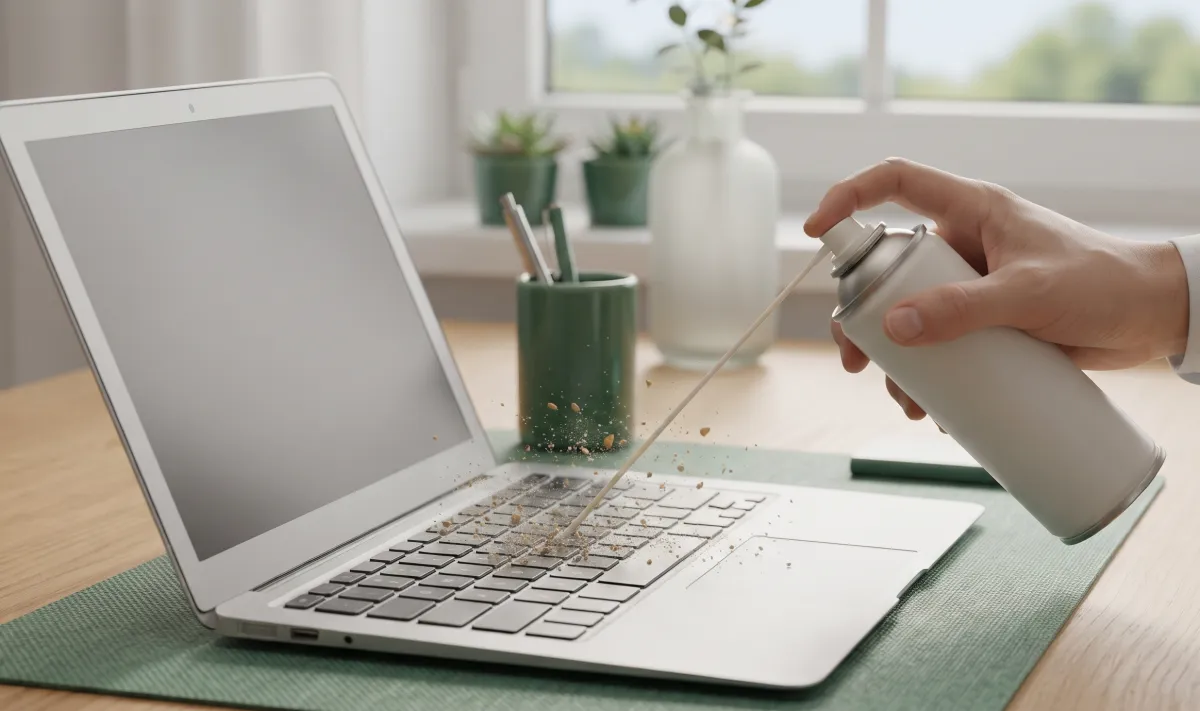
For a single sticky key, power the laptop off, tilt it, and use short bursts of compressed air around the key. Crumbs under a laptop key are a far more common cause than a broken switch. Run the keyboard test again once it is clean.
Fixes When a Key Fails the Keyboard Test
- No key works in the keyboard test: try another USB port without a hub, replace or charge the batteries, or re-pair the Bluetooth keyboard.
- One key stays white in the keyboard test: clean around it. On a mechanical board, pull the keycap and check that the switch stem moves freely.
- Wrong character appears: the key works but the system layout is wrong. Check the input language in your system settings. The key code in the keyboard test’s last key panel shows which physical key was pressed.
- Key types twice: if the keyboard test flags it, see the chatter section above. Raise debounce, replace the switch, or claim warranty.
- Keys missing in games only: that is a rollover limit, not a dead key. Check the rollover result in this keyboard test.
- Key is slow or laggy: wireless keyboards add delay in power saving mode. Wake it with a key press and try a wired connection.
Test the Rest of Your Setup
After the keyboard test, while you are checking your gear, run the mouse test for buttons and double clicks, the mouse polling rate test for sensor speed, and the screen Hz test to confirm your monitor runs at its full refresh rate. Like this keyboard test, they all run locally in your browser with nothing to install.
Keyboard Test FAQ
How do I test my keyboard online?
Open the keyboard test above and press every key once, row by row. Each key turns blue while you hold it and stays green after it has worked. Any key that stays white after you press it did not reach the browser and needs a closer look.
Why does a key not light up in the keyboard test?
Either the key is faulty or the signal never reaches the browser. Fn, some media keys, and system shortcuts such as Win+L or Cmd+Tab are handled by the keyboard or the operating system, so no browser keyboard test can see them. For any other key, try a second USB port, another computer, or a cleaning before deciding the switch is dead.
How do I check key rollover in the keyboard test?
Hold down several keys at the same time and watch the Max at once counter. A typical office keyboard reaches 2 to 6 keys, while gaming keyboards with N-key rollover usually show every key you can physically hold. If a key you are holding does not turn blue in the keyboard test, you have found the rollover limit for that key combination.
What does the double typing flag mean?
The keyboard test flags a key when it fires again less than 30 ms after it was released. No one can lift and press a key that fast, so the flag almost always means switch chatter: one press is being read as two.
Can I use this keyboard test on a laptop?
Yes. Turn off the Numpad switch to match a laptop or tenkeyless layout. The laptop keyboard test works the same way, but the Fn row and the brightness and volume keys often do not report to the browser at all.
Is the keyboard test safe? Does it record what I type?
The keyboard test runs entirely in your browser. Key presses are only shown on screen and in the short recent-keys list, nothing is stored, and nothing is sent to a server. Press Reset or close the tab and it is gone.